To connect FreeStyle Libre to GlucoLive, you share your sensor with yourself through LibreLinkUp and then sign in to GlucoLive with that LibreLinkUp account. It takes three steps and a few minutes, and you only do it once.
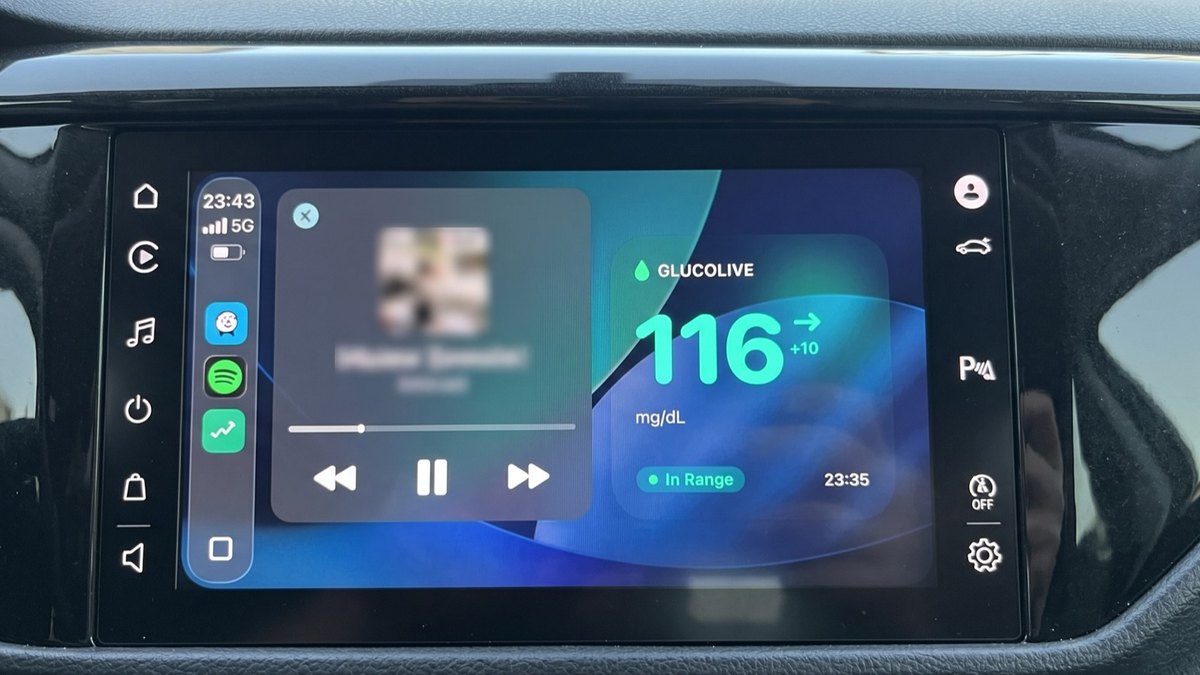
After that, the same reading shows up on your iPhone, Lock Screen, Apple Watch, CarPlay and Garmin. We checked every step below in Abbott's app (FreeStyle LibreLink 2.13.1) and in GlucoLive 5.0, with real screenshots. In each screenshot, a red outline marks where to tap.
Prefer to watch? This one-minute video shows every step.
What is LibreLinkUp, and why does GlucoLive use it?
LibreLinkUp is Abbott's free app for sharing FreeStyle Libre readings with family, friends or caregivers, up to 20 people. GlucoLive uses it the same way: you share your sensor with your own email, and GlucoLive follows that account.
That's why GlucoLive never connects to the sensor itself: your sensor stays with Abbott's app, and GlucoLive shows the reading Abbott shares. It works the same with the Libre 2, the 2 Plus and the 3.
| App | Who uses it | What you do there |
|---|---|---|
| FreeStyle LibreLink (Abbott) | You, with your sensor | Invite your own email as a connection |
| LibreLinkUp (Abbott) | You, as your own follower | Create the account and accept the invite |
| GlucoLive | You | Sign in with the LibreLinkUp email and password |
Step 1: How do you invite yourself in Abbott's app?
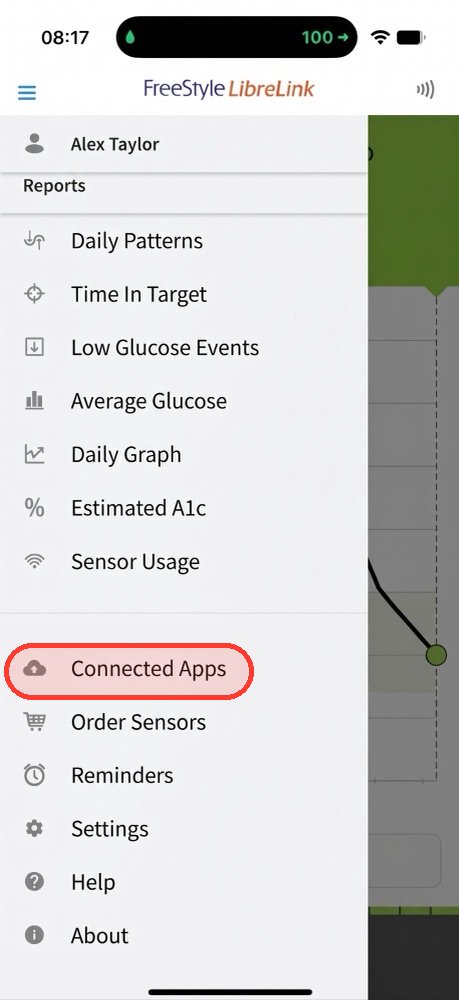
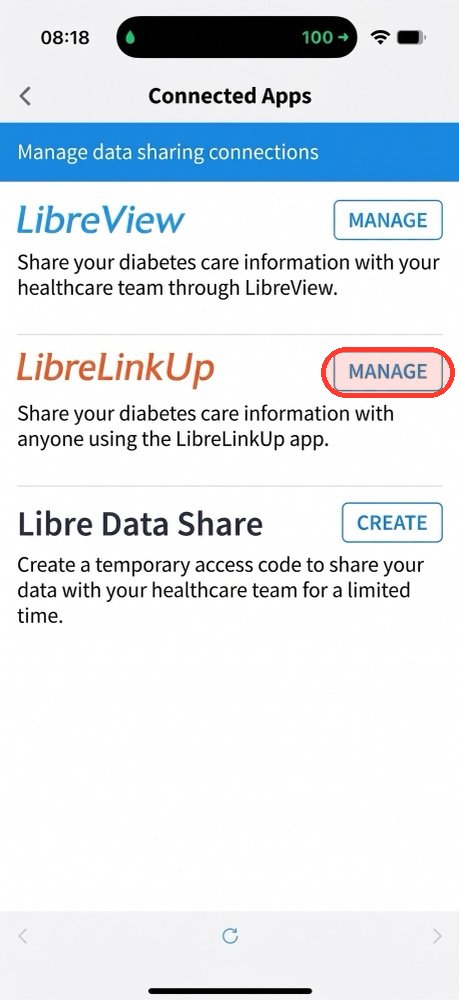
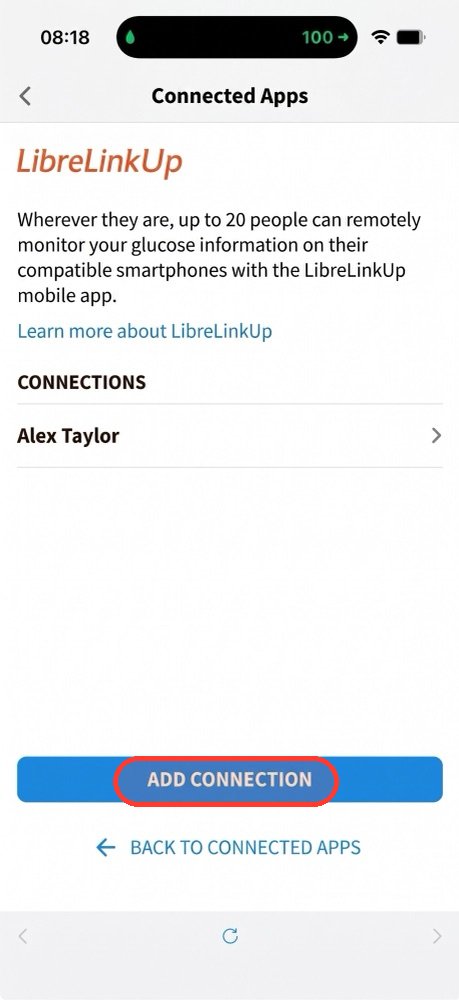
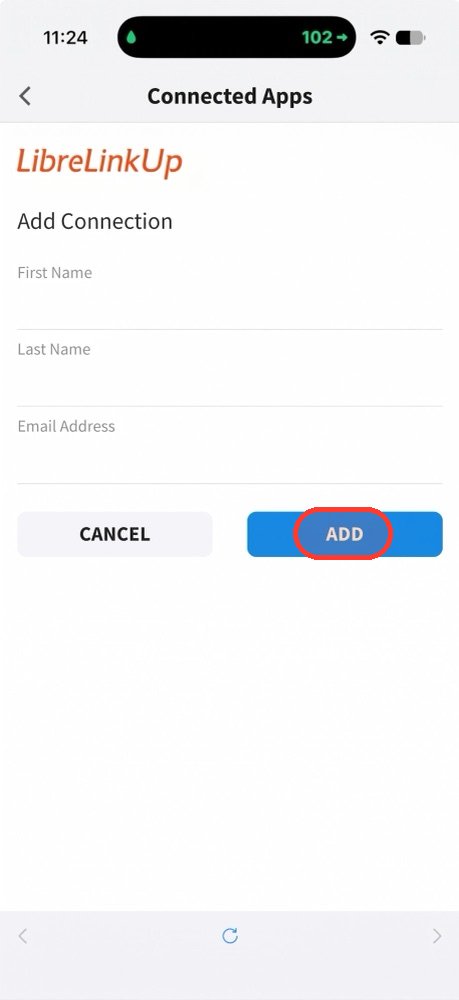
In FreeStyle LibreLink, open the menu, go to Connected Apps, tap Manage next to LibreLinkUp and add a connection with your own email. You become the follower of your own sensor.
- Tap the menu (☰) at the top left and tap Connected Apps.
- Next to LibreLinkUp, tap Manage.
- Tap Add Connection, type your name and the email you'll use in LibreLinkUp, and tap Add.
Menu names can vary a little between versions of Abbott's app; in some versions the button says Connect when you have no connections yet.
Step 2: How do you accept the invite in LibreLinkUp?
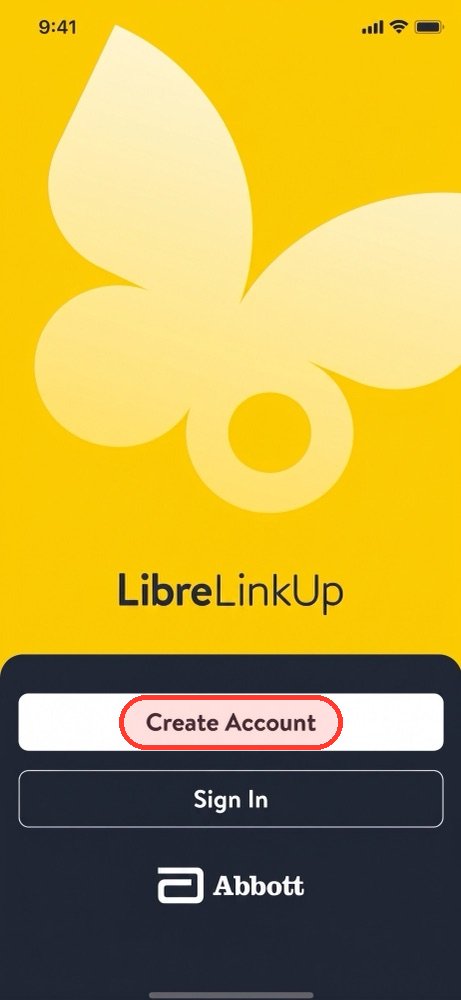
Install LibreLinkUp, create an account (or sign in) with the same email you invited, and follow the screens until your glucose appears. From then on, that account follows your sensor.
- Install LibreLinkUp from the App Store and open it.
- Tap Create Account with the invited email, or Sign In if you already have one.
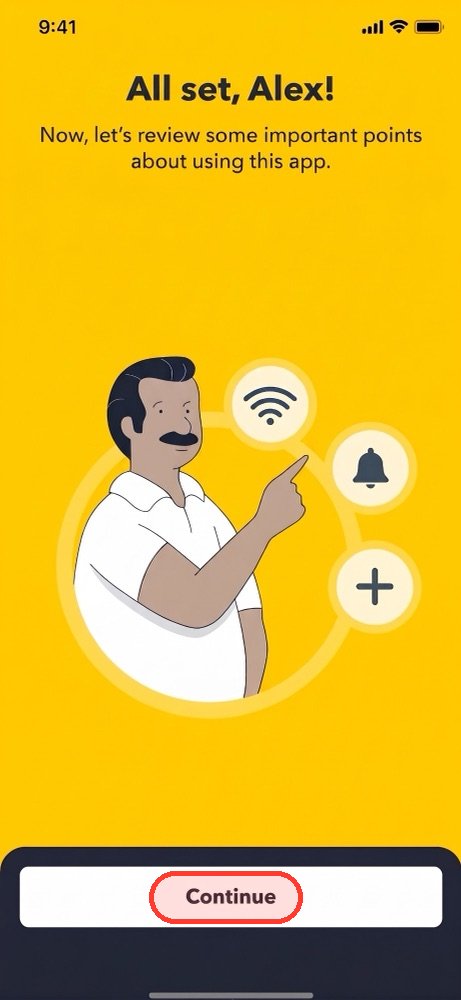
- Go through the welcome screens.
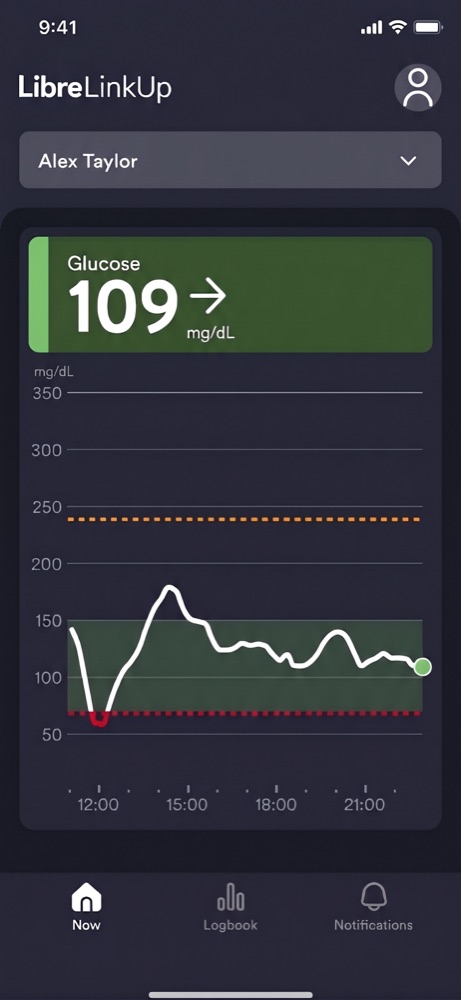
- When your glucose appears on the main screen, the account is ready.
Step 3: How do you sign in to GlucoLive?
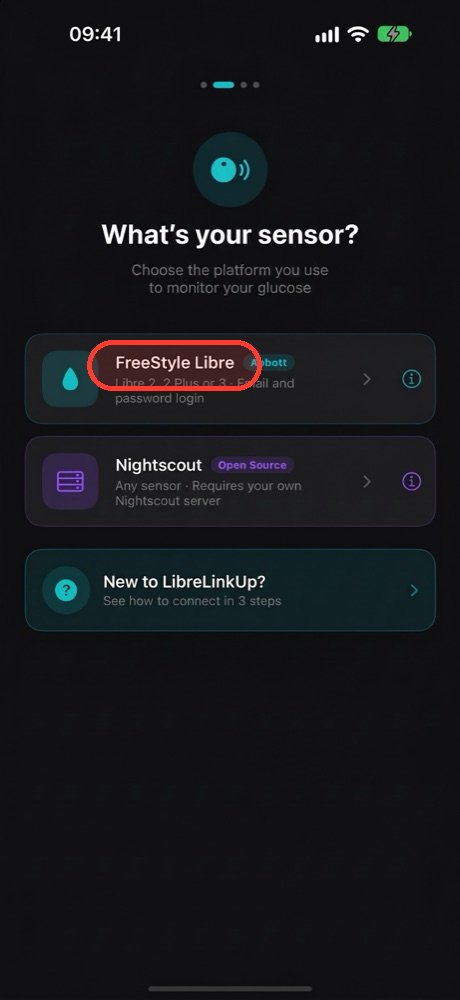
Open GlucoLive, choose FreeStyle Libre and sign in with your LibreLinkUp email and password, not the LibreLink ones. Your first reading appears on the main screen.
- Open GlucoLive and, on "What's your sensor?", choose FreeStyle Libre.
- Type the LibreLinkUp email and password and tap Sign In.
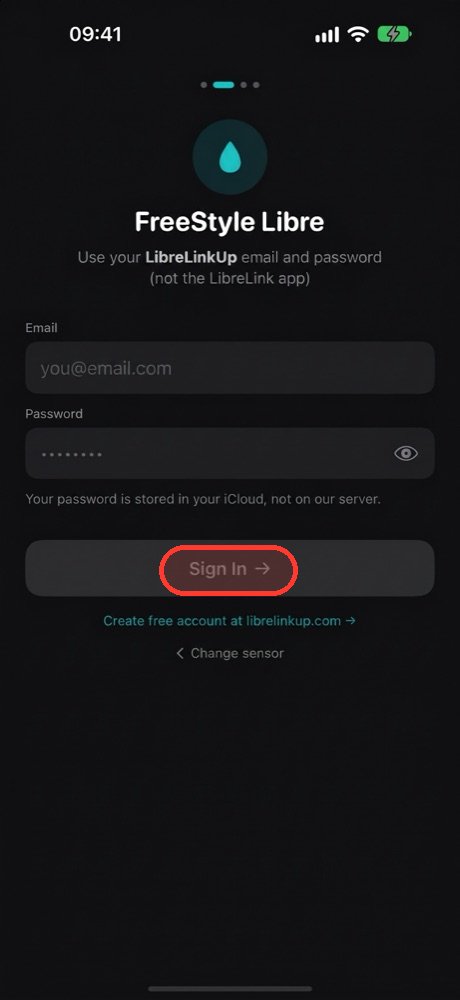
There's no server or region to pick: GlucoLive finds your account on its own.
Can LibreLinkUp stay closed after that?
Yes. GlucoLive signs in directly with your follower account, so you only need to open LibreLinkUp to accept an invite or new terms from Abbott.
Avoid signing in to the same LibreLinkUp account on several devices at once, because that can end the session GlucoLive uses.
What if you use Nightscout?
Choose Nightscout instead of FreeStyle Libre on "What's your sensor?", type your server URL and, if your site needs one, an access token. Then tap Test & Continue.
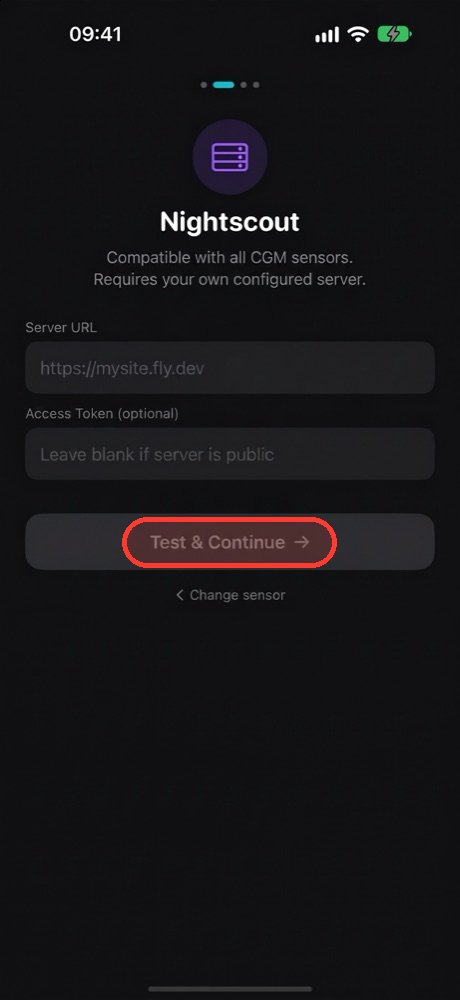
Nightscout works with any sensor your Nightscout site receives.
Is your LibreLinkUp password safe?
Your LibreLinkUp password is stored on your iPhone and in your iCloud, never on our server. The sign-in screen says it too: "Your password is stored in your iCloud, not on our server."
You can delete your data from our server right in the app; see how to delete your account.
What if it doesn't connect?
Most sign-in problems come from using the wrong password or an invite that was never accepted. Check these in order; if readings stop later, see LibreLinkUp not working.
- You used the LibreLink password. GlucoLive needs the LibreLinkUp email and password, from step 2.
- The invite wasn't accepted. Open LibreLinkUp and check that your glucose shows there first.
- Abbott asks for new terms. Open LibreLinkUp, accept them, then come back to GlucoLive.
- No recent reading. Check that your sensor is sending readings in Abbott's app and that both phones are online.
What else do people ask about connecting FreeStyle Libre?
The most common questions are about which sensors work, Dexcom, cost and whether you need a second phone. Here are the short answers.
Which sensors work?
FreeStyle Libre 2, 2 Plus and 3 through LibreLinkUp, and Nightscout, as the GlucoLive App Store listing says.
Do I need a second phone?
No. You can invite yourself and use LibreLinkUp and GlucoLive on the same iPhone that has Abbott's app.
Does it work with Dexcom?
Not at the moment. GlucoLive supports FreeStyle Libre, through LibreLinkUp, and Nightscout.
How much does it cost?
LibreLinkUp is free. GlucoLive is free to download, with 15 days of Pro from your first sensor reading, no card and no automatic charge; then you choose a monthly or annual plan.
See your glucose on every screen
Download GlucoLive and get 15 days of Pro, with no card and no automatic charge.
Download on the App Store Android: coming soonGlucoLive is for informational monitoring. It does not replace your sensor's official app, certified devices or your care team's guidance, and it does not recommend doses or treatment. GlucoLive is not affiliated with Abbott or Nightscout.
More articles
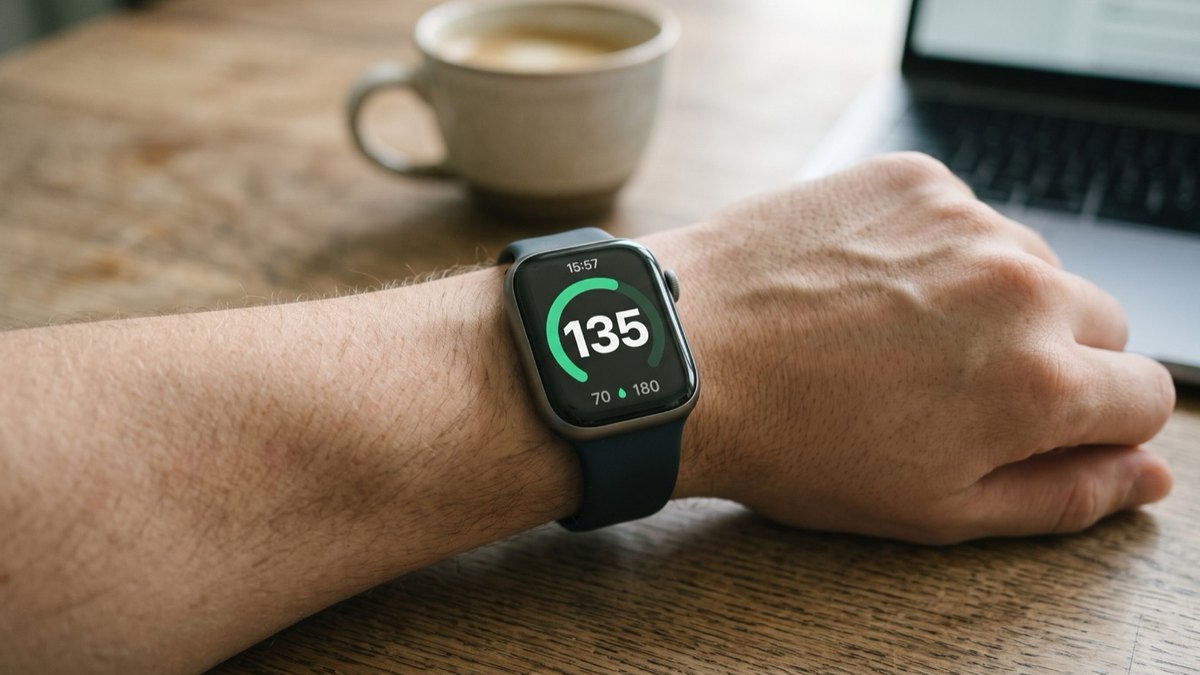 Apple Watch
How to see FreeStyle Libre glucose on Apple Watch
See your Libre reading every time you raise your wrist, on your watch face and in the watch app. Four steps.
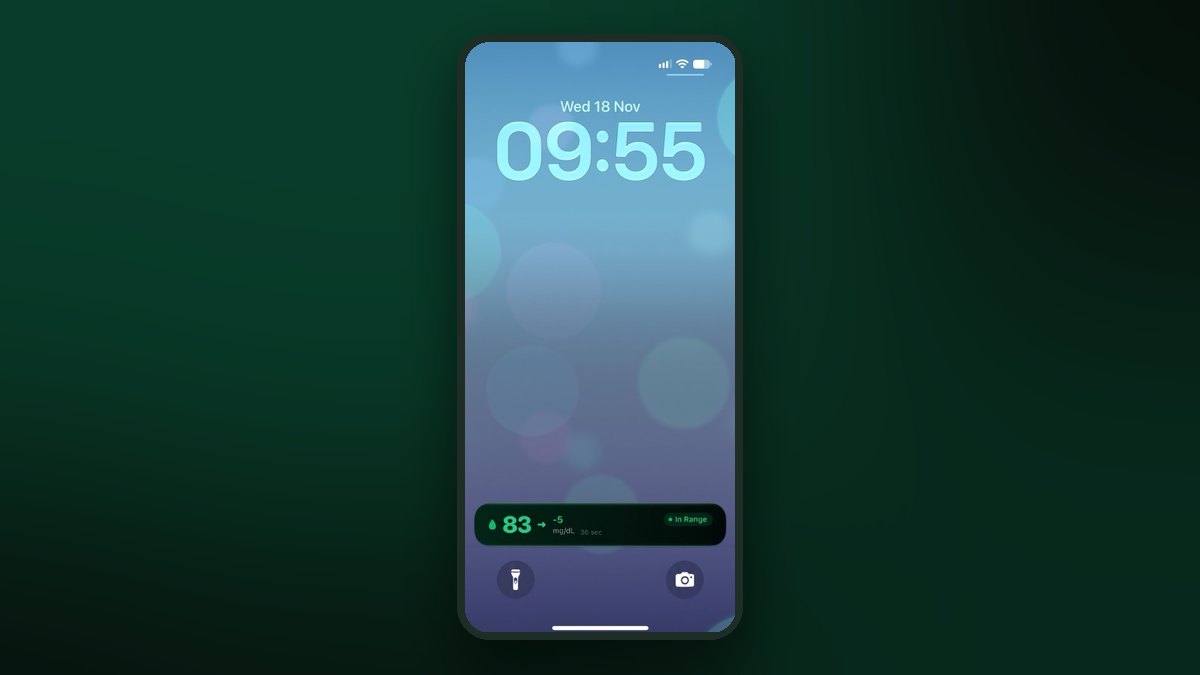 Lock Screen
FreeStyle Libre on the iPhone Lock Screen: widget, Live Activity and StandBy
A Lock Screen widget, a Live Activity, the Dynamic Island and StandBy at night. Step by step for each one.
 CarPlay
FreeStyle Libre on CarPlay: see your glucose on the car screen
The GlucoLive app, a dashboard widget and the Live Activity next to your map. Set up in three steps.