Yes, you can see your FreeStyle Libre glucose on the iPhone Lock Screen without unlocking your phone. GlucoLive puts it there in two ways: a Lock Screen widget and a Live Activity, which also shows in the Dynamic Island and in StandBy at night.
You connect your sensor once, through your LibreLinkUp account, and the same reading also goes to your Apple Watch, CarPlay, Garmin and Mac.
Where can your glucose appear without unlocking the iPhone?
In four places: a widget on the Lock Screen, the Live Activity on the Lock Screen, the Dynamic Island at the top of the screen and StandBy while the iPhone charges. The GlucoLive App Store listing lists the Lock Screen, the Dynamic Island and widgets with an 8-hour chart.
| Where | What it shows | How you turn it on |
|---|---|---|
| Lock Screen widget | Your glucose in a small round, rectangular or one-line widget | You add it on the iPhone, like any widget |
| Live Activity | Value, trend arrow, change, unit, status ("In Range", "Low"…) and an optional trend chart | In GlucoLive, Settings › Live Activity › Active |
| Dynamic Island | The value and arrow at the top, on iPhones that have it | Comes with the Live Activity |
| StandBy | The Live Activity full screen, readable from across the room | iPhone charging, on its side, and a tap on the glucose |
| Home Screen widget | Small, medium or large, with your glucose and the 8-hour chart | You add it on the iPhone |
Is there a FreeStyle Libre widget for iPhone?
Yes. GlucoLive has widgets for the Lock Screen (round, rectangular and one-line) and for the Home Screen (small, medium and large), all showing the same FreeStyle Libre reading.
The widgets read your glucose from GlucoLive, which reads it from your LibreLinkUp account, so they work the same way with the Libre 2, the 2 Plus and the 3. If you haven't connected your sensor yet, start with our guide to connecting FreeStyle Libre.
How do you add the GlucoLive widget to your Lock Screen?
You add it from the Lock Screen itself, in the iPhone's own customization screen: GlucoLive can't place it there for you. It takes a few seconds.
- On the Lock Screen, touch and hold until the Customize button appears, then tap Customize.
- Tap Add Widgets, or tap the widgets you already have.
- Find GlucoLive in the list and choose the round, rectangular or one-line widget.
- Tap Done.
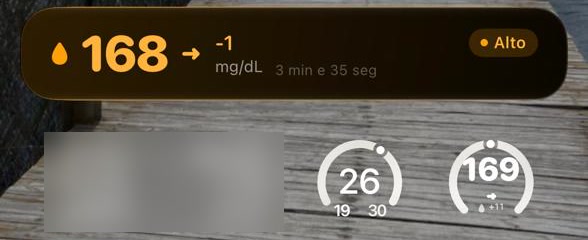
The widget refreshes when iOS lets it, so it can show a reading a little older than the Live Activity, like 169 on the widget and 168 on the Live Activity in the picture above. For the latest reading, look at the Live Activity.
For the Home Screen, touch and hold the background until the apps jiggle, tap Edit, then Add Widget, search for GlucoLive, pick a size and tap Add Widget.
What is the Live Activity, and how do you turn it on?
The Live Activity is a GlucoLive card that stays on your Lock Screen and in the Dynamic Island while you use other apps. Apple calls these ongoing app updates Live Activities.
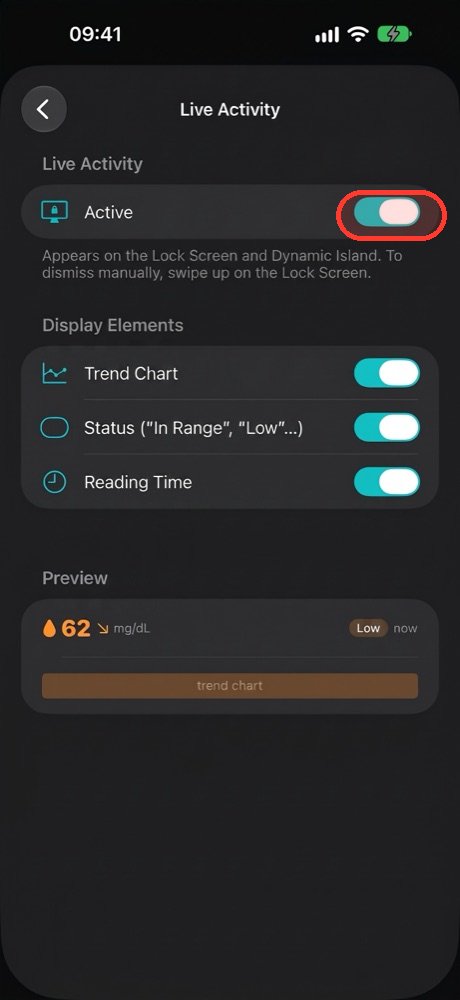
- Open GlucoLive and tap Settings.
- Tap Live Activity and turn on Active.
- Choose what the card shows: Trend Chart, Status ("In Range", "Low"…) and Reading Time.
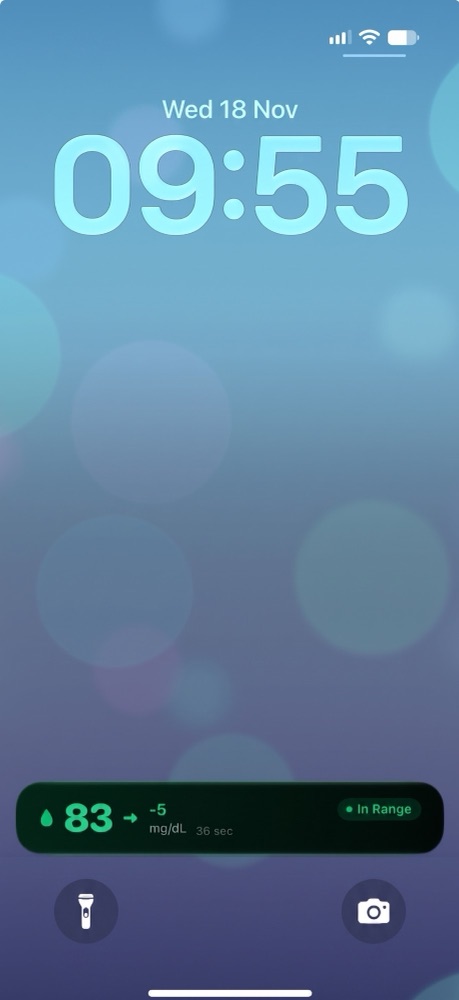
On your Lock Screen, the card shows your glucose, the arrow, the change since the last reading and the status. To dismiss it, swipe up on it on the Lock Screen.
What does the Dynamic Island show?
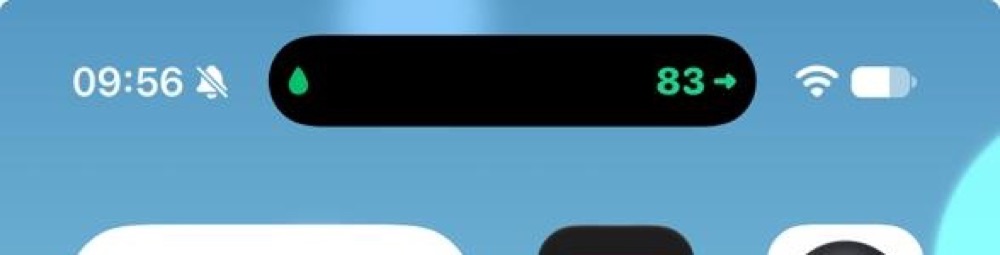
On iPhones with the Dynamic Island, your glucose and the trend arrow stay at the top of the screen while you use other apps. Apple shows Live Activities in the Dynamic Island on the Home Screen and inside apps.
The same Live Activity also appears on your Apple Watch, in the Smart Stack, and on your Mac.
Can you see your glucose in StandBy at night?
Yes. With the iPhone charging and on its side, StandBy can show the GlucoLive Live Activity full screen, large enough to read from your bed.
- On the iPhone, go to Settings › StandBy and make sure StandBy is turned on.
- Open GlucoLive for a moment, so the Live Activity is running.
- Connect the iPhone to a charger and set it down on its side, still.
- Lock the screen. StandBy opens with the clock, and your glucose shows as a small bubble on top of it.
- Tap the bubble. It opens full screen, with the large number, the arrow, the change, the time of the reading and the status.
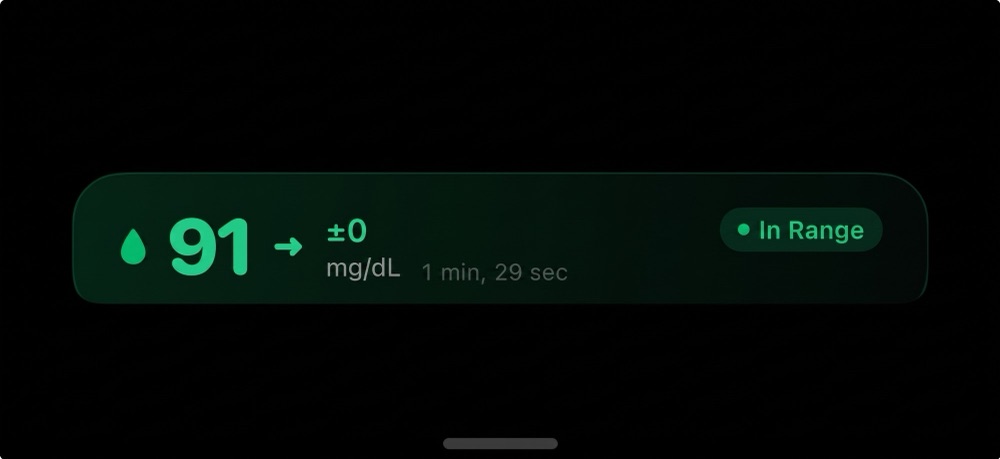
Without step 5, you only see the small bubble. The iPhone decides how StandBy draws this screen, so it can change with your iOS version; we tested these steps on an iPhone running iOS 27.
Why does the Live Activity disappear, and how do you get it back?
iOS ends Live Activities after some hours on its own. With GlucoLive Pro, our server tries to start the card again a few times; if it's still gone, open GlucoLive and it comes back.
Open the app again also when you closed GlucoLive by swiping it away, when you turned the Live Activity off, or on the free plan, which doesn't restart it from the server.
Why does a reading on the Lock Screen help?
You check your glucose with a glance at the phone, without unlocking it or opening an app. The same reading is on your Lock Screen, your watch and your other screens, so you don't have to keep it in your head.
One GlucoLive user wrote in an App Store review:
"Being able to see my glucose results in real time on all my devices takes away the burden of having to remember all the time. Thank you so much!" Mat@112, App Store, translated from Portuguese.
How often does it update?
Your Lock Screen shows real-time glucose\*, the same reading you see in the app. It comes from your LibreLinkUp or Nightscout account.
\*Readings are updated regularly. With the app closed, continuous updates on the Lock Screen and in the Dynamic Island are part of Pro.
What else do people ask about FreeStyle Libre on the Lock Screen?
The most common questions are about Libre 3, the free plan, Dexcom and Abbott's own app. Here are the short answers.
Does it work with FreeStyle Libre 3?
Yes. GlucoLive works with FreeStyle Libre 2, 2 Plus and 3 through LibreLinkUp, and with Nightscout, and the widgets and the Live Activity work the same way for all of them.
Do the widgets and the Live Activity work without Pro?
New users get 15 days of Pro from the first sensor reading, with no card and no automatic charge. After the trial, without a plan, the widget shows GlucoLive as paused and the Live Activity ends.
Does it work with Dexcom?
Not at the moment. GlucoLive supports FreeStyle Libre, through LibreLinkUp, and Nightscout.
Does GlucoLive replace my sensor's app?
No. GlucoLive shows your glucose on more screens, but it doesn't replace your sensor's official app or your care team's guidance, and it doesn't recommend doses.
See your glucose on every screen
Download GlucoLive and get 15 days of Pro, with no card and no automatic charge.
Download on the App Store Android: coming soonGlucoLive is for informational monitoring. It does not replace your sensor's official app, certified devices or your care team's guidance, and it does not recommend doses or treatment. GlucoLive is not affiliated with Abbott or Nightscout.
More articles
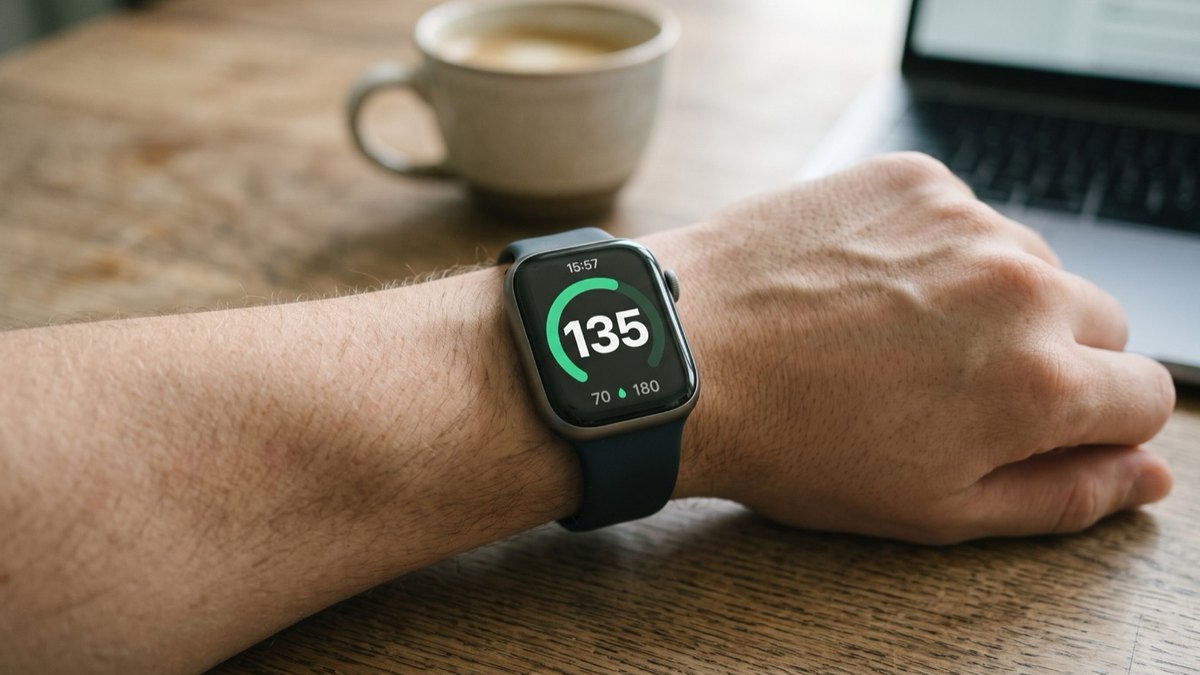 Apple Watch
How to see FreeStyle Libre glucose on Apple Watch
See your Libre reading every time you raise your wrist, on your watch face and in the watch app. Four steps.
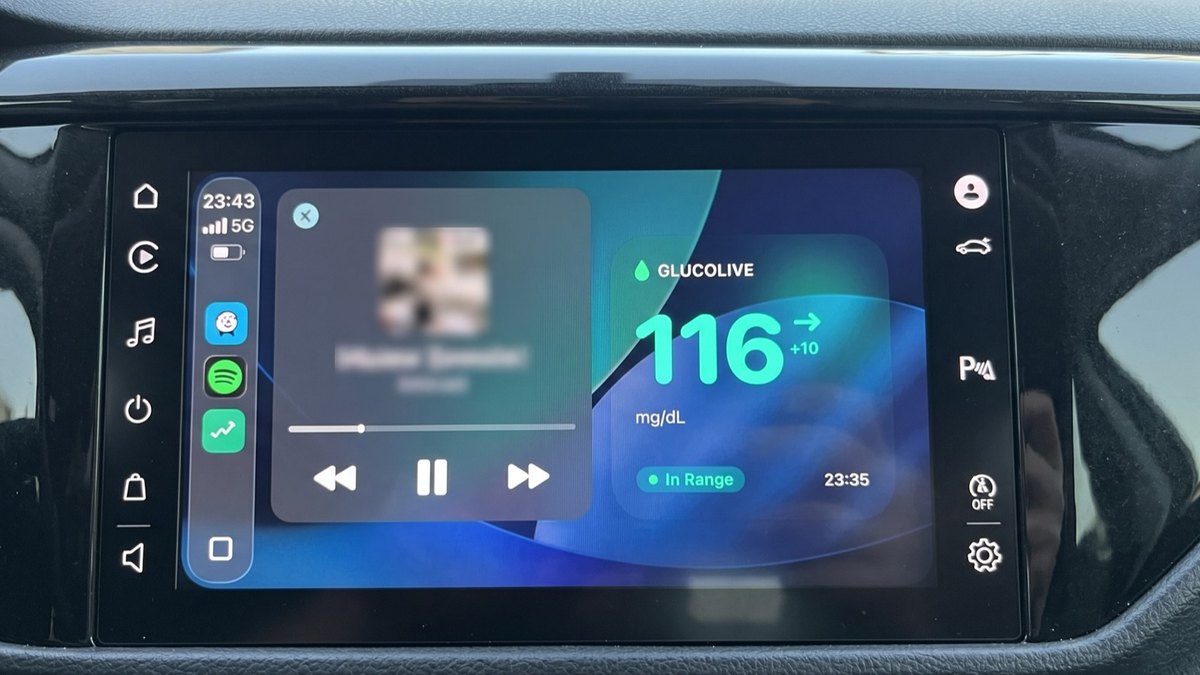 CarPlay
FreeStyle Libre on CarPlay: see your glucose on the car screen
The GlucoLive app, a dashboard widget and the Live Activity next to your map. Set up in three steps.
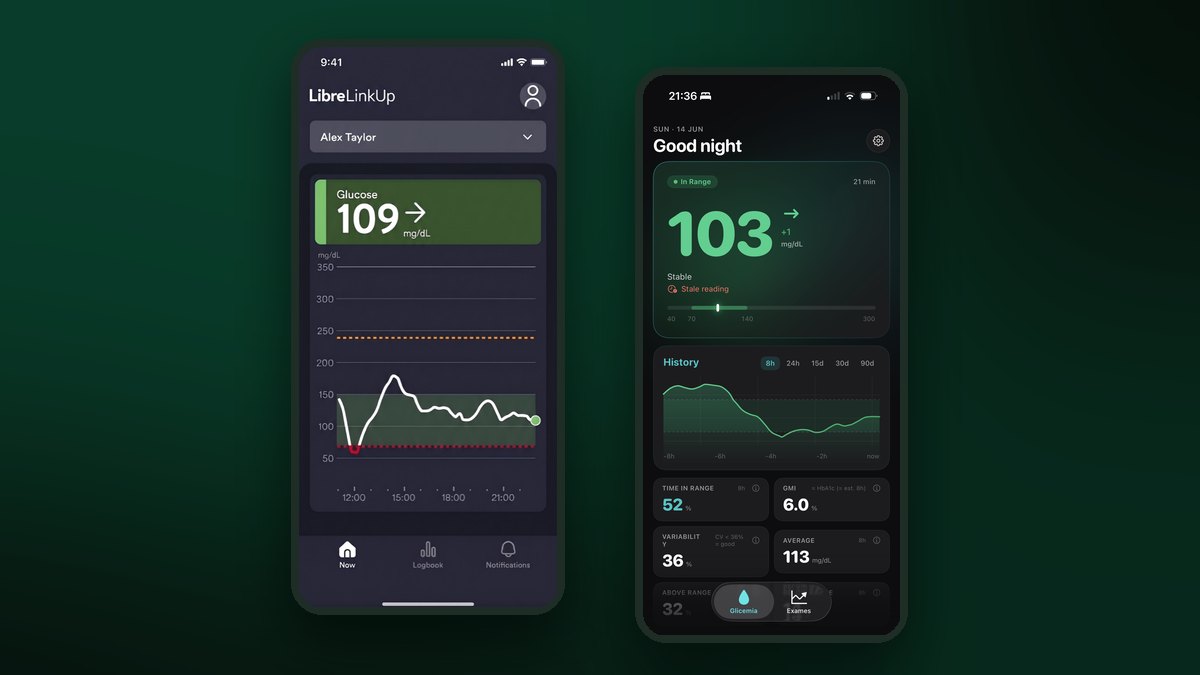 Connect your Libre
How to connect FreeStyle Libre to LibreLinkUp and GlucoLive
Invite yourself in Abbott's app, accept in LibreLinkUp and sign in to GlucoLive. Three steps, with screenshots.